
Veo3 is the latest AI video generation model for making short videos, released in May 2025. It can turn your text or image prompts into high-definition videos with native audio integration. Google also has Veo 2 which allows developers to create eight second videos directly within their browser from both text and image prompts:
- Text-to-Video (t2v): Transform detailed text descriptions into dynamic video scenes. Explore different styles and create your own with extensive camera controls.
- Image-to-Video (i2v): Start with an image from your library or generate your own with models like Imagen and use Veo 2 to animate it. You can use optional text prompts for style and motion.
For e.g:
Prompt: A close up in a smooth, slow pan focuses intently on diced onions hitting a scorching hot pan, instantly creating a dramatic sizzle. Audio: distinct sizzle
Source: Deepmind
With a Google AI subscription costing as little as £20 a month or up to £120 for Google AI Ultra, which anyone can use to produce content in minutes. Let’s kick things off with Flow, the AI filmmaking tool made specifically for Google Deepmind’s top models like Veo, Imagen, and Gemini.
Step 1: Gather your Info
For my first scene, I want to showcase a fictional Starman in space using text-to-video.
Prompt:
Cinematic wide shot of deep space. A lone astronaut, the “Starman” floats silently near a sleek, rotating spacecraft. The backdrop is filled with stars, glowing nebulae, and a massive gas giant casting soft light. The scene is tranquil and awe-inspiring.

Source: Flow

Source: Flow
The first version looked promising, but we don’t have any music yet.
Keeping that in mind, I made a few more changes until I found one that felt alright. It’s not perfect, but it’s way closer to what I wanted.
Here’s the updated prompt I came up with:
Cut to: Inside the helmet: a close-up shot of the Starman’s reflective visor showing the universe ahead. Soft ambient synth music begins to rise. You can see galaxy reflections and HUD elements gently blinking.

Step 2: Add to Scene
Once you’re satisifed with your first, then click Add to Scene.

A timeline will open up. Click the plus sign, and then choose between:
- Jump to: This happens and then (the scene jumps to)
- Extend: This happens and then (extended shot)
Another example, I wanted to extend the second scene, and try out a new prompt ( I noticed scene builder might crash which is something that Google needs to work on but this feature does look promising! ):
Prompt:
Cut to: The camera pulls back, revealing the astronaut framed against a glowing nebula. A soft cinematic lens flare streaks across the screen.
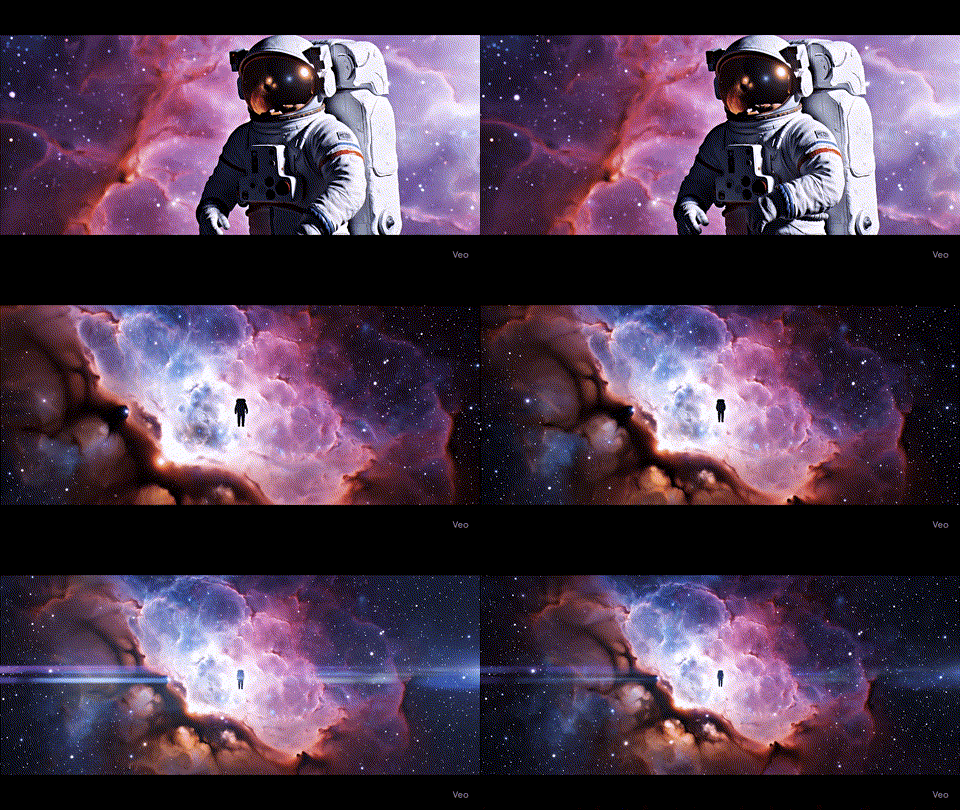
Source: Flow
Prompt cohesion was low and the tone and style didn’t match what I had in mind. That said, you can keep iterating the scene until you have a decent cut.
On top of that, you have different modes available in Flow such as:
- Frames-to-Video: Enables users to use a first frame, last frame or both to generate a clip.
- Ingredients-to-Video: Enables users to use text and different assets to generate a clip.
Unfortunately the Ingredients-to-video feature is available to AI Ultra subscribers only.

Frames to Video
With this feature, you can either generate the frames from a prompt or upload them yourself.
For e.g.

Unfortunately, this feature currently runs on Veo 2 and not 3.

As expected the quality of the output wasn’t great.
Prompt:
Scene 1: [Space Exterior—Wide Shot] (A slow, cinematic pan across the void of deep space. Earth is distant. A glimmering red Tesla Roadster floats silently, the stars reflecting off its smooth frame.)

Step 3: Download the scene
In Flow you can download the invidiual scenes or download multiple scenes from scene builder.
For e.g
You can click on the download icon for any individual scene and download them in one of the following options:
-
Animated Gif (270p)
-
Original Size (720p)
-
Upscaled (1080p)

Source: Flow
You might have questions about the credits when you join Flow. Each video you create can use anywhere between 10 to 100 credits for the Veo-3-Quality models.
Note: Google AI Pro members get 1,000 AI Credits each month, while Google AI Ultra members get 12,500 AI Credits.
At the end of the day, I would recommend you to save those credits by generating just one output at a time. This way, you can make your credits last throughout the month since it’s pretty easy to run out in just a week.
Final Cut from fictional Spaceman:
Source: Flow